How to deactivate LinkedIn account: step-by-step guide for 2026
Clear LinkedIn strategy for people publishing with purpose.

On this page
- Hibernation vs. deletion: what happens to your LinkedIn profile
- How to deactivate or delete your LinkedIn account on desktop
- How to deactivate or delete your LinkedIn account on mobile
- What to do before deactivating or deleting your account
- How long until your LinkedIn profile disappears from search engines?
- How to deactivate or delete your LinkedIn account if you lost access
- Want to take a break instead? how Postwriter helps you stay consistent without burnout
- Your LinkedIn exit: what to do next
- Frequently asked questions
- What is the difference between deactivating and deleting a LinkedIn account?
- How long does it take for my LinkedIn profile to disappear from search engines after deletion?
- Can i recover my LinkedIn account after deletion?
- What happens to my messages and endorsements when i deactivate or delete my account?
- How do i download my LinkedIn data before deleting my account?
- Does deactivating LinkedIn remove my profile from google?
- Can i deactivate or delete my LinkedIn account from the mobile app?
- What if i forgot my password or lost access to my email?
If you want to deactivate your LinkedIn account or just disappear for a while, you have two choices: hibernate (deactivate) or delete. Hibernating hides your profile and pauses activity, but LinkedIn keeps your data. Deleting wipes your account and all your info for good.
This guide breaks down both options, what happens to your data, and how long each process takes, so you know exactly what to expect.
Hibernation vs. deletion: what happens to your LinkedIn profile

Hibernating your LinkedIn account hides your profile for most people, but your name and company might still show up in places like group membership lists or old messages. People won’t see your photo, headline, or work history. You disappear from searches, but you’re not erased.
Deleting your LinkedIn account is final. Your profile, activity, endorsements, and connections vanish from LinkedIn. Over the next few weeks, Google and other search engines drop your info as their indexes update. You can’t get your old account back once it’s deleted.
Here’s a side-by-side look:
| Effect | Hibernation | Deletion |
|---|---|---|
| Profile visibility | Hidden, but name/company may appear | Removed entirely |
| Messages | Old messages stay visible to others | Old messages stay visible to others |
| Endorsements | Hidden, but not lost | Deleted forever |
| Reactivation | Can sign back in and restore | Not possible |
If you hibernate after a job change, coworkers might still see your name in past messages, but your profile is off-limits. If you delete it, you disappear from search, and recruiters can’t find you with your old LinkedIn URL.
TL;DR: Hibernate if you want a break or need to hide for a while. Delete if you’re done with LinkedIn for good.
How to deactivate or delete your LinkedIn account on desktop
You can close or pause your LinkedIn account in a few clicks on desktop. Here’s exactly how it works.
1. Get to account settings
Log in at linkedin.com and click your profile photo at the top right. Choose “Settings & Privacy.” This opens the main settings dashboard.
Tip: Sometimes “Settings & Privacy” is under a dropdown labeled “Me.”
2. Find the account management section
In the left sidebar, click “Account preferences.” Then look for “Account management.” This is where LinkedIn puts both hibernation (temporary deactivation) and deletion.
- Hibernation: Pauses your account, hides your profile, but keeps your data if you want to come back.
- Close account: Deletes everything. No going back.
3. Choose hibernation or deletion
Pick the option you want. If you’re unsure, hibernation is safer, you can reactivate later. If you’re set on leaving, pick “Close account.”
4. Follow the prompts
LinkedIn will ask why you’re leaving or deactivating. Choose an answer (required). On the final confirmation screen, double-check: deletion wipes recommendations, messages, and all connections.
5. Confirm
Hit “Confirm.” If you chose hibernation, you can log back in anytime to restore everything. Deletion means starting from scratch if you ever return.
If you manage multiple profiles, each must be closed or hibernated separately, LinkedIn doesn’t batch this.
How to deactivate or delete your LinkedIn account on mobile

Deactivating or deleting your LinkedIn account on mobile is quick if you know where to look.
Open the LinkedIn app and tap your profile picture in the top left. This opens your menu. Scroll down and tap Settings & Privacy.
Inside Settings & Privacy, tap Account preferences. Scroll down until you see Close account or Hibernate account:
- Hibernate account: Temporarily deactivates your account. People can’t find you, and your profile is hidden, but you can reactivate anytime.
- Close account: Deletes your LinkedIn account for good, including your connections, messages, and profile data.
If you’re helping someone else, double-check if they want a temporary break or a full wipe before you proceed. Once you hit Close account, LinkedIn will ask why you’re leaving and for your password before finalizing.
The mobile app doesn’t always show all advanced settings, but as of June 2024, both options are under Account preferences. If you don’t see them, update your app.
On the final screen for closing your account, LinkedIn displays a warning about losing all your data, screenshot that if you need proof for a client or your own files.
If you need to check scheduled content before closing your account, see this complete guide to viewing scheduled posts so you don’t lose posts you meant to publish.
That’s it, five taps and you’re done.
What to do before deactivating or deleting your account
Before you shut down your LinkedIn account, a little prep saves headaches later. Once your account’s gone, you can’t get data back, and billing can sneak up if you miss a step.
- Download your data: Go to Settings & Privacy, then “Get a copy of your data.” LinkedIn lets you download everything from your connections list to private messages. The export is a CSV, so you can open it in Excel or Google Sheets.
- Cancel LinkedIn Premium: If you pay for Premium, cancel your subscription first or LinkedIn might keep charging you. From “Manage Premium account,” hit “Cancel subscription” and follow the prompts. You keep Premium until the end of your billing cycle.
- Check open job applications: Go to the Jobs tab and look at your “Applied Jobs.” If you want a record, take screenshots or add details to a doc. LinkedIn deletes this history when your account goes.
- Review group memberships: If you’re active in industry groups, copy any group-exclusive content you need or contact group admins. Once your account is deleted, you lose access to all group discussions and resources.
- Save important messages and recommendations: Scroll through your messages and copy any conversations you want to keep. Recommendations are included in your data download, but it’s smart to screenshot standout ones for quick sharing.
Take these steps before starting the deactivation process. Once your account’s gone, it’s final.
How long until your LinkedIn profile disappears from search engines?
Delete your LinkedIn profile and it disappears from LinkedIn right away, nobody can find you through LinkedIn search, and your profile link returns a “Profile Not Found” message. But search engines like Google or Bing aren’t as fast. Your old profile can still show up in their results for several weeks, because search engine indexing lags behind real-time changes.
You delete your profile today, but if you Google your name and “LinkedIn” tomorrow, you’ll probably still see it. That’s normal. Google and Bing keep cached versions until their bots revisit and confirm the page is gone. For most people, those links disappear in about two to four weeks, but it can take longer if your profile had a lot of backlinks.
Want the link gone faster? Request removal directly from Google or Bing. Google’s Remove Outdated Content tool is simple: drop in your old profile’s URL, and Google usually pulls it from search results within a few days. Bing offers a similar process in their Webmaster Tools dashboard.
For example, deleting a test LinkedIn profile, Google cached the result for 18 days before it vanished. Using Google’s removal tool for a different profile, the search result disappeared in 48 hours.
If you want to check what’s still visible, try this LinkedIn profile viewer guide.
Bottom line: LinkedIn cuts your profile instantly, but Google and Bing can take a few weeks to catch up unless you give them a nudge.
How to deactivate or delete your LinkedIn account if you lost access
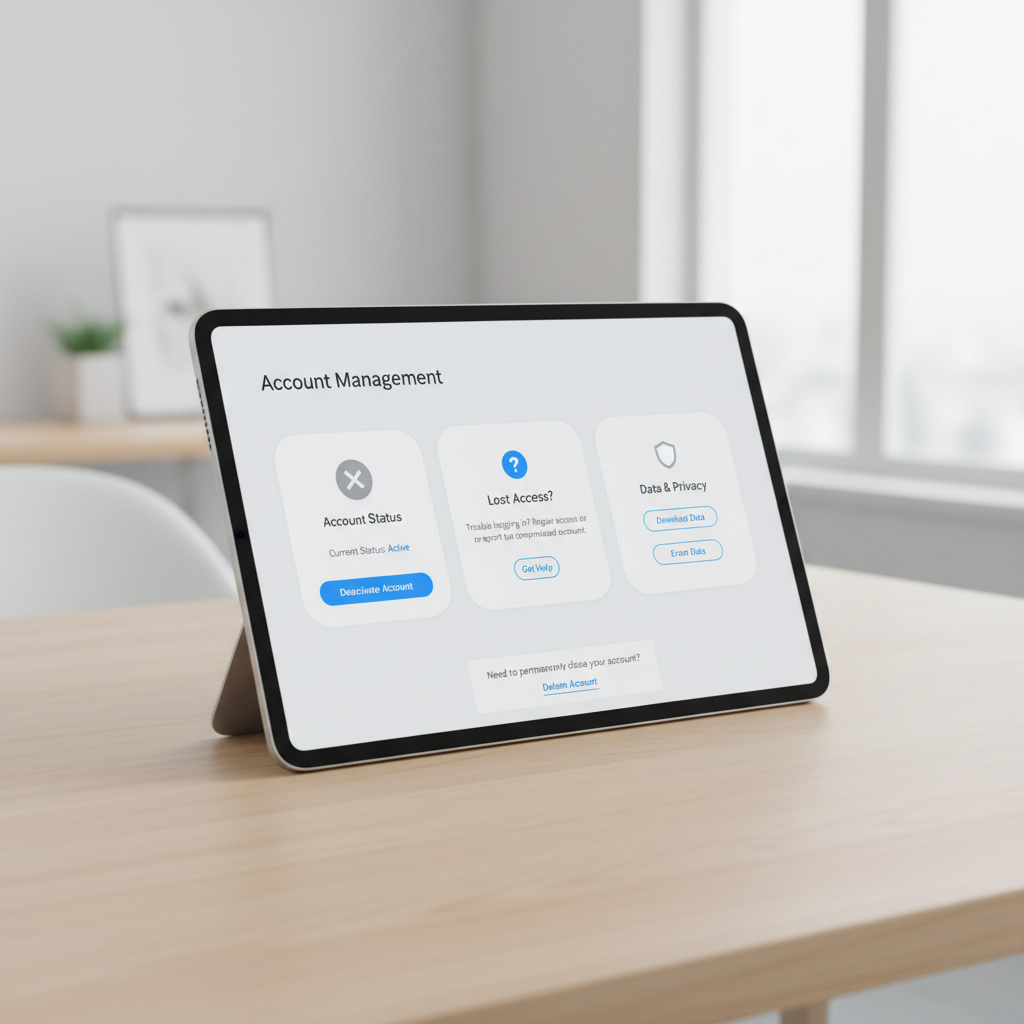
Lost your LinkedIn login? You can’t delete or deactivate your account yourself unless you recover access first. Here’s what to do.
If you forgot your password, start with LinkedIn’s account recovery tools. Go to the login page, click “Forgot password?”, and enter your email or phone number. If you used a phone number, LinkedIn sends a code right away. No phone? Try the “Can’t access email?” link, LinkedIn will walk you through verifying your identity.
If you set up trusted contacts, LinkedIn lets you use them to confirm you’re the account owner. If not, move to the next step.
Still locked out? Contact LinkedIn Help directly. Go to the LinkedIn Help Center and choose the option for account access issues. They’ll ask for proof you own the account, usually a government ID and details like your last job title or profile photo. For example, a client got back into their account after sharing a photo of their work badge and confirming their old company’s email domain.
You can’t delete or deactivate your LinkedIn account without logging in. There’s no public-facing “delete my account” form for people who lost access. But LinkedIn Help can step in if you prove who you are. They won’t delete the account unless you’re verified.
If your account was already deleted but you want to recover it, LinkedIn gives you a short window (up to 14 days) to reactivate. Use the recovery options above, but act fast, after that, the data is gone for good.
Bottom line: Recovery comes first. Deletion comes second. If you’re stuck, LinkedIn Help is your lifeline.
Want to take a break instead? how Postwriter helps you stay consistent without burnout
Feeling like LinkedIn is eating up your energy? Most people start strong, then hit a wall, posting drops off, and the algorithm forgets you. That’s where Postwriter steps in.
Instead of forcing yourself to post every day, you can load up a week or a month of LinkedIn content in one sitting. Postwriter lets you schedule everything ahead, so your profile stays active even when you need a break. For example, draft five posts on Sunday, set them to go live throughout the week, and ignore LinkedIn until next weekend.
Let the AI do the heavy lifting. You feed it your industry focus and the kind of content you want, and it creates posts that actually sound like you, not a robot. You keep showing up on your audience’s feed without burning out or scrambling for ideas at 10 p.m.
If you’re thinking about pausing your LinkedIn activity or even deactivating your LinkedIn account, try automating your posting first. You get the consistency the algorithm loves, without the daily grind. Your network keeps growing.
Try Postwriter: See how easy it is to automate LinkedIn content with Postwriter and keep your presence strong while you focus on bigger goals.
Your LinkedIn exit: what to do next
Leaving LinkedIn is a big call, so get your ducks in a row first. Decide if you want to step away for a while (hibernation) or permanently wipe your profile (deletion). Hibernation hides your profile but keeps your connections and data on ice. Deletion erases everything, and you can’t go back.
Before you pull the trigger, download your data. LinkedIn lets you grab your connections, messages, and posts, just hit “Settings & Privacy,” then “Get a copy of your data.” If you pay for Premium, cancel your subscription so you don’t get billed after leaving.
Ready to go? Use the steps above to deactivate or delete your account. If you just want a break from the endless feed, try a tool like Postwriter. It lets you keep your LinkedIn presence but automate posting, so you’re not sucked into scrolling every day. Sometimes a little distance is all you need.
You may also find How to add a resume to LinkedIn: step-by-step guide for 2026 | Postwriter useful.
Frequently asked questions
What is the difference between deactivating and deleting a LinkedIn account?
Deactivating (hibernating) your LinkedIn account hides your profile and activity but keeps your data intact, allowing you to reactivate later. Deleting your account permanently erases your profile, connections, and data, and you cannot recover them after 14 days.
How long does it take for my LinkedIn profile to disappear from search engines after deletion?
Your profile is removed from LinkedIn immediately after deletion. However, it can take several weeks for Google, Bing, and other search engines to clear cached versions. You can request removal from search engines for faster results.
Can I recover my LinkedIn account after deletion?
You have up to 14 days to recover your LinkedIn account after deletion, but some data (like endorsements, group memberships, and recommendations) may be lost permanently. After 14 days, recovery is not possible.
What happens to my messages and endorsements when I deactivate or delete my account?
Hibernation preserves your messages and endorsements, but they are hidden. Deleting your account permanently removes all messages, endorsements, and recommendations from LinkedIn.
How do I download my LinkedIn data before deleting my account?
Go to LinkedIn Settings & Privacy, select ‘Get a copy of your data’ under the Data Privacy section, and follow the prompts to request and download your information.
Does deactivating LinkedIn remove my profile from google?
No, deactivating (hibernating) your account hides most profile details but your name and company links may remain visible and indexed by search engines. Only deletion fully removes your profile from search results over time.
Can I deactivate or delete my LinkedIn account from the mobile app?
Yes, you can deactivate or delete your LinkedIn account from the mobile app by accessing Settings & Privacy, then Account Preferences, and following the prompts for hibernation or deletion.
What if I forgot my password or lost access to my email?
Use LinkedIn’s account recovery tools, such as phone number verification or trusted contacts. If you can’t regain access, contact LinkedIn Help for further assistance.
Turn this into a LinkedIn post
Use Postwriter to turn a topic, source, or rough idea into a draft that keeps your voice and gives you something worth editing.
See how Postwriter works