How to add CV to LinkedIn: upload guide for 2026
Clear LinkedIn strategy for people publishing with purpose.
By Postwriter · Updated August 21, 2026 · 11 min read
TL;DR: To add a CV to LinkedIn, upload a PDF or Word document under 5 MB to your Featured section for public viewing, or store up to four versions in your Easy Apply settings for private job applications. Optimize your file format and review privacy settings before you apply.
On this page
- Choosing your visibility: public vs private upload strategies
- File format optimization and sizing constraints
- Managing multiple resumes in Easy Apply settings
- Troubleshooting mobile app upload workarounds
- Leveraging ai tools and professional writing for LinkedIn
- Streamlining your LinkedIn career documents
- Frequently asked questions
- Can I upload my resume directly to my LinkedIn profile?
- How can I upload my resume privately so my current employer doesn’t see?
- What File formats does LinkedIn accept for resumes?
- How many resumes can LinkedIn store for job applications?
- Should I post my resume publicly on LinkedIn?
- What should I do when uploading fails on the mobile app?
Tired of wondering whether recruiters can actually see your CV on your profile? Let us walk through the exact steps to upload and secure your resume. If you are trying to figure out how to add cv to linkedin, you have three main options. You can pin a PDF to your Featured section for public visibility, upload a file to your Job Application Settings for private “Easy Apply” submissions, or link a cloud folder in your About section.
Your CV opens doors; your strategy keeps them open. We will cover the latest methods to add a resume to LinkedIn so you can balance privacy with discoverability. This guide covers visibility strategies, file optimization, and managing multiple versions for different roles.
Choosing your visibility: public vs private upload strategies

Your visibility strategy depends on whether you want to be hunted or do the hunting.
Public showcase via Featured section
Use the featured section to put your resume in front of every recruiter who visits your profile. This is a high-visibility play for active seekers who want to reduce friction for hiring managers. Before you upload, scrub your personal details like your home address or private phone number.
A public PDF is a permanent billboard. If you change your contact info or update a job title, you must manually delete the old file and upload the new one. Once your profile is polished, you can share your LinkedIn URL on any device to drive traffic directly to these documents.
Stealth job hunting with cloud links
Private applications require stealth job hunting protocols to keep your current boss in the dark. Instead of a public upload, host your files in cloud storage google drive dropbox and share a restricted view link. Set the permissions to “Anyone with the link can view” so the recruiter doesn’t have to request access.
This method gives you total control. You can update the master document in your cloud folder, and the link you sent to ten different recruiters automatically reflects those changes.
| Strategy | Best For | Privacy Level | Control |
|---|---|---|---|
| Featured Section | Active Seekers | Low | Manual Updates |
| Cloud Links | Stealth Seekers | High | Instant Sync |
| Easy Apply | Volume Applying | Medium | Per-Job Upload |
If you use Easy Apply settings, remember that these documents stay private from your general profile. They only go to the specific company you apply to. This is the safest middle ground for those who want speed without the public exposure of a featured post.
File format optimization and sizing constraints
Supported File extensions and sizes
Stick to PDF, DOC, or DOCX formats to ensure your file actually opens. While Word documents are easy to edit, a PDF is the gold standard because it locks your layout in place. This prevents your carefully aligned bullet points from shifting when a recruiter opens the file on a different screen.
Keep your file size under 5 MB. Most platforms will reject anything larger, and a massive file can lag a recruiter’s browser. If your resume is too big, it is usually because of high resolution images or embedded graphics.
Use a tool like Adobe Acrobat or an online compressor to shrink the file. You can also follow Microsoft formatting best practices to keep the document lean. Small files upload faster.
Preparing files for applicant tracking systems
Most companies use applicant tracking systems (ATS) to scan your resume for keywords before a human ever sees it. These bots struggle with complex layouts. Avoid using tables, text boxes, or images to display your skills, as the ATS might skip that text entirely.
Use a single column layout with standard headings like “Experience” and “Education.” This ensures the parser reads your history in the correct chronological order.
Before you upload, check your document metadata security. Files often store hidden data, such as the original author’s name or the total editing time. If you used a template from a previous job, the metadata might still list your old company as the creator.
To scrub this, use the Inspect Document feature in Word or the Remove Hidden Information tool in a PDF editor. This keeps your professional image clean. It also prevents you from accidentally sharing private version history with a stranger.
Managing multiple resumes in Easy Apply settings

Uploading to job application settings
Stop uploading a new file every time you hit the apply button. You can pre-load your documents in the Job Application Settings menu. This area acts as a staging ground where you store the files you intend to use for different roles.
To get there, click the Jobs icon and select the settings gear. Upload your various versions here so they are ready before you start scrolling through listings. Your CV opens doors; your strategy keeps them open.
Switching between stored resume versions
LinkedIn stores up to your four most recent resumes for quick access. This is a built-in system for resume version control. You do not need a complex folder system on your desktop if you use these slots effectively.
Use this limit to target different industries. For example, keep one version for Project Management and another for Operations. When you use easy apply, the system lets you choose which of these four files to attach to the specific application.
Follow this workflow to avoid sending the wrong file:
- Open the easy apply prompt on a job posting.
- Review the required skills in the job description.
- Select the resume version that mirrors those specific keywords.
- Confirm the file name matches the role before submitting.
Mistakes happen when you rush. If you upload a new version today, it will bump the oldest of your four stored files. Keep your naming conventions clear, such as Project_Manager_2024.pdf, so you can tell them apart in a split second. This prevents the nightmare of sending a creative portfolio to a corporate accounting firm.
Troubleshooting mobile app upload workarounds
Fixing mobile upload failures
Switch to your mobile browser’s Desktop Site mode when the app hangs. Mobile apps often struggle with large PDF buffers or strict API timeouts, causing the upload button to spin indefinitely. In Chrome or Safari, tap the browser menu and select Request Desktop Site to bypass these app restrictions.
This trick forces the platform to treat your phone like a computer. It usually resolves file preview loading failures on iOS and Android because it triggers a different upload protocol.
If the preview still won’t load, check your file name for special characters. Symbols like #, %, or & can break the upload path on mobile operating systems. Rename your file to something simple, like Resume_Final.pdf, and try again.
Correcting document formatting shifts
Layout errors happen when a mobile viewer lacks the specific fonts used in your document. This causes text to wrap awkwardly or pushes your contact info onto a second page. To stop this, export your file using PDF/A (the archival standard) to embed all fonts directly into the document.
Follow Microsoft Support document formatting best practices by avoiding floating text boxes and complex tables. These elements often shift when viewed on smaller screens. Use standard margins of 1 inch to ensure your content stays centered.
If your formatting still looks off, check the file size. Files over 5MB can sometimes trigger partial renders on mobile devices, leaving you with a blank page or a cut-off header. Compress the PDF to under 2MB to ensure the viewer loads the entire layout instantly.
Once your documents are stable, focus on your linkedin profile optimization. A clean resume is only half the battle if your profile headline doesn’t match the experience listed in your uploaded files.
Skip the manual work. Postwriter is an AI-powered content creation tool specifically designed for LinkedIn. Try Postwriter →
Leveraging ai tools and professional writing for LinkedIn
Using ai resume assistants
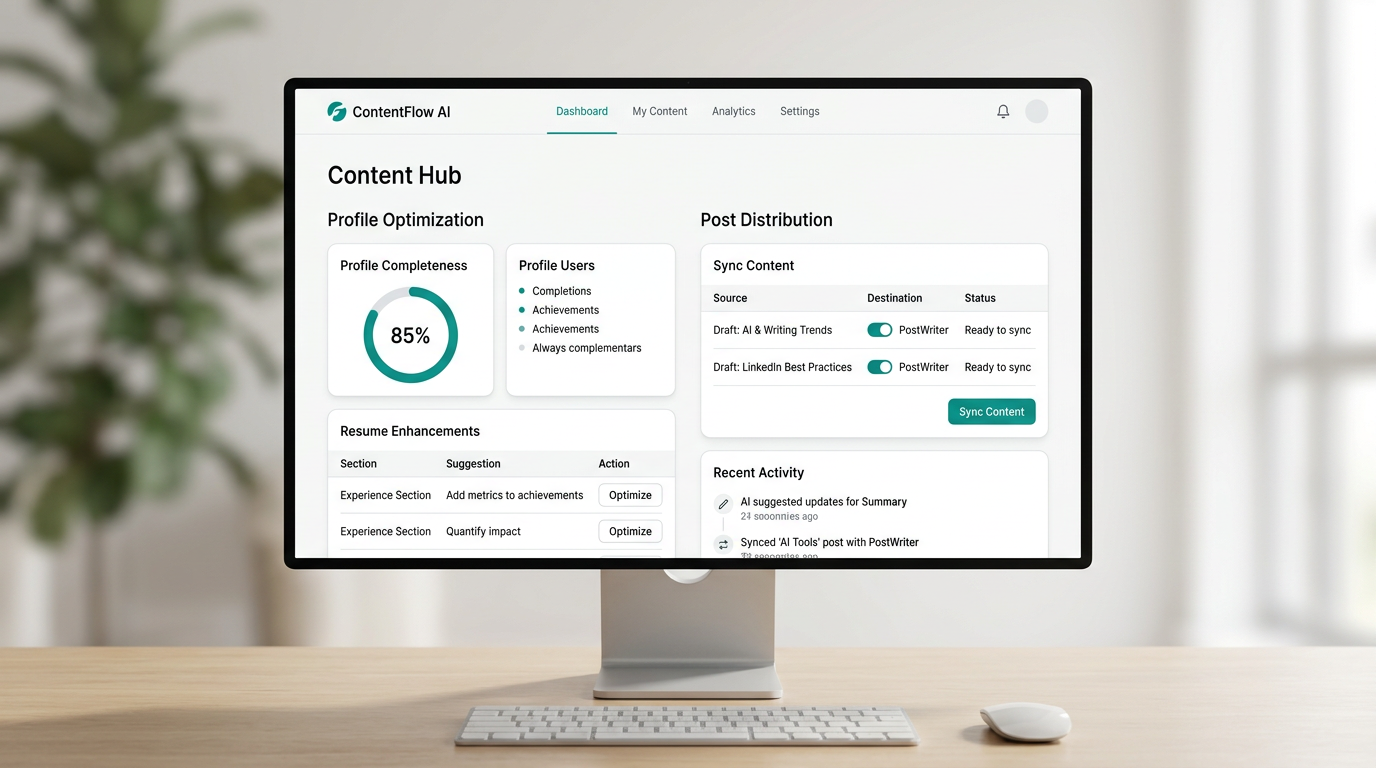
LinkedIn Premium users can access an ai resume assistant to bridge the gap between a static document and a live profile. This tool analyzes your uploaded CV and suggests specific keywords or phrasing to make your profile more discoverable to recruiters. Use it to identify gaps where your resume writing is too formal for a social feed.
Your public profile description should mirror the core achievements in your resume. If your CV lists $50k in cost savings, your “About” section should frame that as a primary skill. This alignment prevents “profile shock” when a hiring manager moves from your feed to your documents.
Synchronizing content with Postwriter
A polished profile is a dead end if you don’t post. To turn your resume achievements into authority, use Postwriter to transform dry bullet points into tailored LinkedIn posts. The tool analyzes your existing voice so the output doesn’t sound like a generic bot.
Say you have a resume line about managing a 10 person team. Instead of just listing it, create a post about the biggest lesson you learned leading that group. This proves you actually possess the skills listed in your files. You can learn how to write a LinkedIn post that gets engagement in 2026 to ensure these insights actually reach your target audience.
Consistency beats intensity. Use a scheduling calendar to drip-feed these updates over a month rather than dumping five posts in one day. This steady cadence signals to the algorithm and your network that you are an active expert in your field.
The workflow is simple:
- Pick one achievement from your CV.
- Run it through a viral template.
- Schedule it for Tuesday morning.
- Repeat weekly.
That habit builds a searchable trail of evidence. It turns your profile from a digital resume into a living portfolio.
Streamlining your LinkedIn career documents
Before you touch the upload button, lock down who can see what. LinkedIn lets you set your profile visibility separately from your document visibility, and those two settings don’t always match.
Check your privacy settings first
Go to Settings & Privacy > Visibility and check who can see your activity and any featured documents. If you’re job hunting quietly, flip on “Private mode” for browsing so your current employer’s recruiter doesn’t see you scoping out competitors. Also check the visibility toggle that appears the moment you add resume to your profile. It defaults to visible to everyone, which is fine if you want recruiters cold-messaging you, but not fine if your boss follows your posts.
Build a File that survives the robots and the humans
Applicant tracking systems scan your resume before a person ever opens it. Save your file as a standard .docx or .pdf, name it something like “Firstname-Lastname-Resume.pdf” instead of “Resume_final_v3.pdf,” and skip fancy text boxes, columns, or graphics that scanning software chokes on. Most systems parse plain, single-column layouts far more reliably than designer templates.
Keep the file small too. LinkedIn caps document uploads at 10 MB, and most ATS platforms are even stricter, some rejecting anything over 2 MB. A resume with embedded headshots or logo files can blow past that limit fast. Strip images, compress the PDF, and you’ll land well under the ceiling with room to spare.
Ship it today, not “someday”
A polished resume sitting on your desktop helps nobody. Once you’ve tightened the formatting and checked your privacy settings, upload the file to your profile and attach it to your next few job applications right away. Recruiters searching LinkedIn’s talent pool often filter for profiles with an attached resume, so an empty upload slot can quietly knock you out of consideration before a human even reads your headline.
Set a five-minute timer, swap in the cleaned-up file, and move on with your day.
Frequently asked questions
Can I upload my resume directly to my LinkedIn profile?
Yes, you can upload your resume directly to your profile by adding it to the Featured section. Visitors can view and download the document straight from your profile page, making it easy for recruiters to review your qualifications without hunting for contact details.
How can I upload my resume privately so my current employer doesn’t see?
To keep your job search private, you can store your resume in job application settings for Easy Apply without featuring it publicly on your profile. Alternatively, you can upload the file to a cloud storage platform like Google Drive and share a restricted link.
What File formats does LinkedIn accept for resumes?
LinkedIn accepts PDF, DOC, and DOCX file formats for resume uploads across both your profile and the Easy Apply feature. Ensure your document is under the 5 MB maximum size limit and free of corrupted formatting before uploading.
How many resumes can LinkedIn store for job applications?
LinkedIn saves up to your four most recent resume uploads within your Easy Apply settings. This storage capacity allows you to switch between tailored resume versions depending on the specific role or industry you apply for.
Should I post my resume publicly on LinkedIn?
Posting your resume publicly depends on your current employment status. If you are actively looking for work and want recruiters to find you instantly, adding it to your Featured section works well. If you are employed, stick to private Easy Apply settings.
What should I do when uploading fails on the mobile app?
If you experience upload errors on the LinkedIn mobile app, try logging into your account through a desktop web browser. Desktop environments offer fewer layout restrictions and better support for uploading complex PDF and Word documents.
Turn this into a LinkedIn post
Use Postwriter to turn a topic, source, or rough idea into a draft that keeps your voice and gives you something worth editing.
See how Postwriter works